EPG Not Updating Fixes for Smooth TV Guide Experience
Nothing ruins a relaxing night of television faster than missing TV listings. When your screen shows blank slots instead of your favorite shows, the entire viewing experience suffers. This common EPG Not Updating issue often stems from simple technical hiccups that prevent your device from pulling fresh data.

Edit
Full screen
Delete
EPG Not Updating
Most services rely on XMLTV sources to deliver structured schedules. If your iptv epg fails to load, the cause is usually an expired URL, an offline server, or a mapping error. When your IPTV guide not refreshing, it simply means the link between your player and the data source is broken.
You can easily restore your service by following a structured troubleshooting process, including fixing EPG Not Updating issues. We will examine how to check your provider settings, refresh cached files, and verify your network configuration. By adjusting your time-zone settings and validating your source links, you will get your schedule back on track in no time.
Key Takeaways
- Identify why your TV schedule fails to load correctly.
- Understand the role of XMLTV sources in data delivery.
- Learn how to fix expired URLs and server connection errors.
- Discover steps to clear cache and refresh your player.
- Adjust time-zone settings to ensure accurate program display.
EPG Not Updating: Common Symptoms and Root Causes
When your IPTV service stops showing program details, it can be frustrating to navigate your favorite channels. Users often face EPG Not Updating issues that manifest as blank grids or outdated EPG data, making it difficult to know what is currently airing. Recognizing these patterns is the first step toward restoring your service.

Edit
Full screen
Delete
EPG Not Updating
How missing, outdated, or partially populated guide data appears
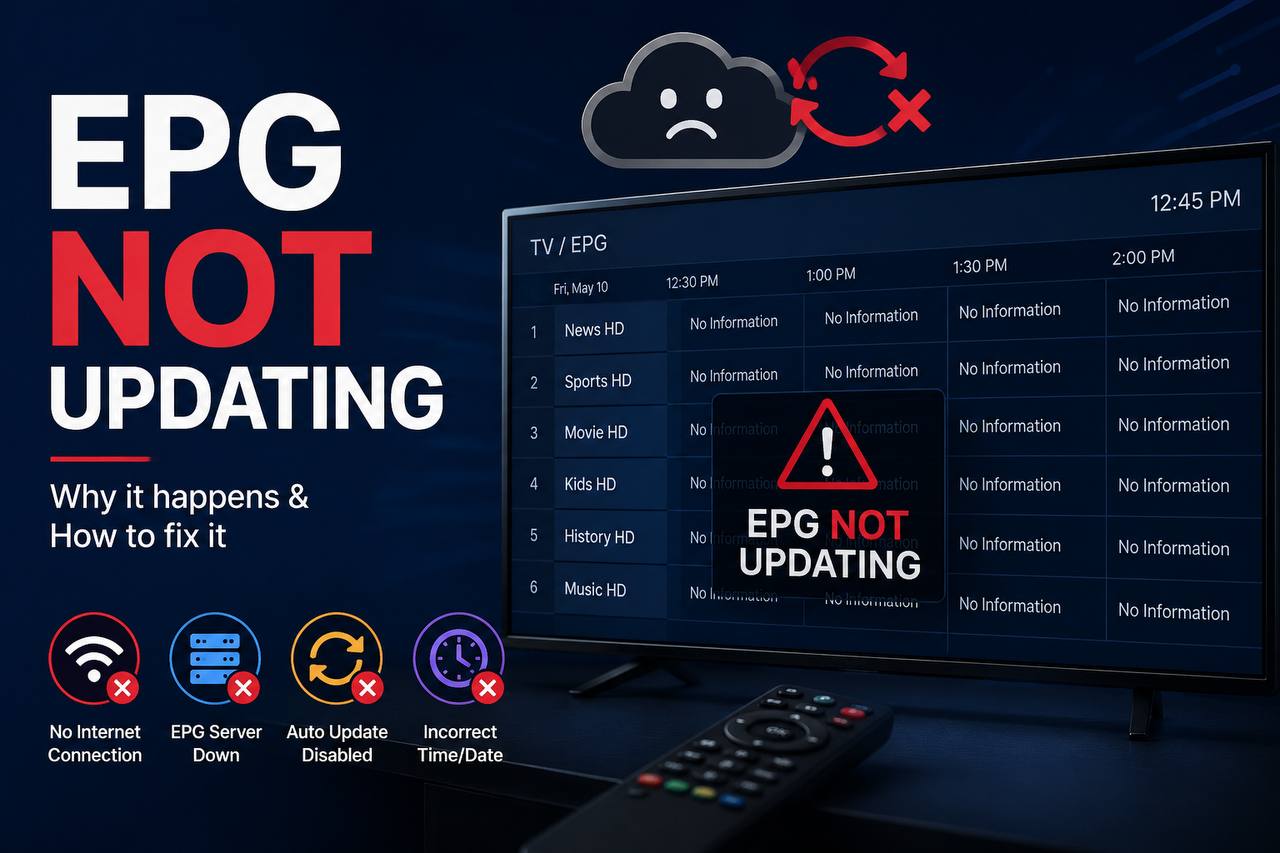
A missing TV guide usually presents itself in a few distinct ways due to an EPG Not Updating error. You might see a completely empty grid, or perhaps you see “No information” labels across every channel. In other cases, the guide might show programs from several days ago, which is a clear sign that the data is no longer syncing correctly.
Sometimes, the issue is only partial, often linked to an EPG Not Updating problem. You may find that only a few categories or specific channels fail to load, while others remain functional. This inconsistency often points to a mismatch in the data source rather than a total system failure.
“Technical problems are rarely as complex as they seem; they are usually just a series of small, solvable errors waiting to be identified.”
— Anonymous
Why an IPTV EPG can stop refreshing
An iptv epg feed relies on a constant connection to a remote server, which can lead to an EPG Not Updating issue if interrupted. If that server becomes unreachable, your device cannot pull the latest schedule. Furthermore, if the URL for your XMLTV file has expired or changed, the application will simply fail to retrieve any new information.
Another common culprit is a mismatch between channel identifiers. If your playlist uses specific IDs that no longer align with the ones provided by your XMLTV source, the app will not know which program belongs to which channel. This is a frequent cause when users report EPG Not Updating on tivimate, as the app requires precise mapping to function.
How to distinguish provider issues from app or device problems
To determine the source of the error, you should test your subscription on a different device. If you see an iptv smarters pro epg failed message on your phone but the guide works perfectly on your TV, the problem is likely local to the app settings or your network. However, if the guide is broken across all devices, the issue almost certainly lies with your provider.
| Symptom | Likely Cause | Recommended Action |
| Blank grid on all devices | Provider server outage | Check provider status page |
| Outdated data on one device | Local cache corruption | Clear app cache and refresh |
| “No information” on specific channels | Incorrect channel mapping | Re-assign EPG source |
| Failed to load URL error | Expired or broken link | Verify EPG URL format |
Always check your provider’s official notices or social media channels for service updates. If they are performing maintenance, you may simply need to wait for them to resolve the issue on their end. Patience is key when dealing with widespread server-side disruptions.
Check the IPTV Provider Before Changing App Settings
Many users rush to change their app configurations when facing an EPG Not Updating error, but the problem often lies with the provider. It is important to realize that some subscriptions provide live television without including a current iptv epg feed. If your plan does not support this feature, no amount of local app adjustment will restore the missing information.

Edit
Full screen
Delete
iptv epg
Confirm that the subscription includes current EPG data
Before diving into technical settings due to an EPG Not Updating problem, verify your EPG subscription data directly with your service provider. Some budget-friendly packages exclude guide metadata to reduce server costs. If your account tier does not explicitly list guide support, you may be experiencing a standard limitation rather than a technical error.
Check provider status pages, service notices, and playlist changes
Most professional services maintain status pages or Telegram channels to announce maintenance when facing an EPG Not Updating situation. When an IPTV provider EPG goes down, it often affects every subscriber simultaneously. Check for recent playlist revisions, as providers frequently update their backend infrastructure, which can temporarily break the link to your guide.
Verify that the EPG source matches the current channel lineup
Your channel lineup must align perfectly with the XMLTV source provided by your service, preventing any EPG Not Updating issues. If the provider has recently reorganized their categories or added new channels, the old EPG link may no longer map correctly to your current list. Always ensure the URL you are using is the most recent version provided by your support team.
Recognizing expired, blocked, or overloaded EPG servers
Sometimes, the stream works perfectly while the guide remains blank. This usually indicates that the EPG server status is compromised. An expired, blocked, or overloaded server will often return incomplete data or fail to respond to requests entirely. If you notice the guide is consistently empty during peak hours, the server is likely struggling to handle the high volume of requests from users.
| Issue Type | Primary Symptom | Likely Cause |
| Expired Server | No data loads at all | Subscription or URL expired |
| Overloaded Server | Slow or partial loading | High traffic or server strain |
| Blocked Access | 403 Forbidden error | IP restriction or firewall |
| Mismatched Data | Wrong show titles | Outdated channel lineup |
Verify the EPG URL, Playlist, and XMLTV Source
Ensuring your streaming setup functions correctly often comes down to the accuracy of your configuration files, especially when troubleshooting an EPG Not Updating error. If your guide data is missing or broken, the first step is to perform a thorough audit of your IPTV playlist and the associated XMLTV source. Small errors in these links can prevent your device from pulling the necessary schedule information.
Confirm the IPTV EPG URL is complete and correctly formatted
Every IPTV EPG link must be a valid, fully qualified web address, which is crucial if you are experiencing an EPG Not Updating issue. Check that the URL begins with the correct protocol, such as “http” or “https,” and contains no accidental spaces at the beginning or end. Even a single hidden character or a missing slash can cause the entire request to fail.
Match XMLTV channel identifiers with playlist channel IDs
Successful EPG channel mapping relies on a perfect match between your playlist and the guide data, which directly helps resolve an EPG Not Updating situation. If the channel ID in your M3U file does not align exactly with the identifier provided by the XMLTV URL, the application will not know which program information belongs to which stream. You may need to open both files in a text editor to verify that these unique keys are identical.
Remove extra spaces, unsupported characters, and outdated URLs
Over time, links can become deprecated or corrupted by copy-paste errors. Carefully review your IPTV Smarters Pro EPG URL or any other provider link for special characters that might be misinterpreted by your player. If you suspect a link is simply too old, it is best to delete it and request a fresh version from your service provider.
How to test an IPTV EPG URL in a web browser
Testing your link in a standard web browser is a highly effective way to diagnose connectivity issues related to an EPG Not Updating error. Simply paste the URL into your browser’s address bar and press enter. If the link is healthy, you should see a block of text or a downloadable file containing channel data. If you receive a 404 error, a login prompt, or a blank page, the link is likely unreachable or malformed.
When a provider should supply a replacement XMLTV link
Sometimes, the issue lies entirely with the server hosting the guide data. If your browser test returns a server-side error or if the data is consistently outdated, you must contact your provider for a replacement. They are responsible for maintaining the integrity of the XMLTV source and ensuring it remains compatible with modern streaming applications.
| Issue Type | Common Symptom | Recommended Action |
| Malformed URL | 404 or Connection Error | Check for extra spaces or typos |
| Mapping Mismatch | Empty Guide Data | Sync Channel IDs in M3U file |
| Expired Source | Outdated Program Info | Request new link from provider |
| Auth Failure | Access Denied Message | Verify login credentials in URL |
Refresh Guide Data and Clear Cached EPG Files
When your channel listings appear stale or incomplete, you are likely dealing with an EPG Not Updating issue. Before you consider reinstalling your software, you should attempt to manually trigger a data update to pull the latest schedule from your provider.
Force an EPG refresh from the IPTV application
Most modern streaming applications include a dedicated button to perform an IPTV EPG refresh, which is essential when facing an EPG Not Updating problem. Navigate to the settings menu within your app and look for the “EPG” or “Guide” tab. Selecting the update option forces the software to reach out to your provider’s server and download the most recent XMLTV feed.
Clear guide data without deleting playlists or account settings
If a standard update does not work, you may need to clear EPG cache files to remove corrupted or stuck information, effectively resolving an EPG Not Updating problem. This process is safe and will not remove your login credentials or your active channel playlists. By clearing the temporary storage, you allow the application to start a fresh download from scratch during the next refresh TV guide cycle.
Restart the app, streaming device, and home network
Sometimes, the problem is not the data itself but the connection between your device and the server, which often triggers an EPG Not Updating alert. A full power cycle of your streaming hardware and your home router can resolve stalled background processes. Restarting your equipment ensures that your network connection is stable and ready to handle the incoming guide data packets.
Why cached guide files can preserve old listings
Your device often stores cached guide files to speed up the loading process when you open the app, which can sometimes lead to an EPG Not Updating situation. While this is helpful for performance, these files can sometimes become “stuck” in your device’s memory. Even if your provider publishes a corrected schedule, your app might continue to display the outdated information until you force it to discard those old files.
Fix EPG Not Updating on TiviMate
If you are struggling with EPG Not Updating on TiviMate, you are certainly not alone. Many users encounter this frustration when their channel guide fails to display current program information. By adjusting your TiviMate EPG settings, you can often restore functionality quickly and effectively.
Review TiviMate EPG source assignments
The first step is to ensure your EPG source is correctly linked to your playlist, which is vital for resolving any EPG Not Updating issues. Navigate to the settings menu and select the EPG section to view your current sources. Verify that the URL is active and that the application recognizes the file format.
Run a manual EPG update in TiviMate
Sometimes, the application simply needs a nudge to fetch the latest data to fix an EPG Not Updating error. You can perform a TiviMate manual update by selecting the “Update EPG” option within the guide settings. This forces the app to bypass the scheduled timer and pull fresh information directly from your provider’s server.
Adjust the EPG update interval and refresh behavior
If your guide data becomes stale and you are dealing with an EPG Not Updating problem, your refresh interval might be set too high. We recommend setting the update frequency to every 6 or 12 hours to ensure consistent data flow. Consistent updates prevent the guide from falling behind your actual broadcast schedule.
Resolve “No information” listings after a successful refresh
Even after a successful update, you might still see “No information” on specific channels, which is a common symptom of an EPG Not Updating or misaligned channel setup. This usually happens when the channel ID in your playlist does not match the ID provided by the XMLTV source. You may need to manually re-assign the channel to the correct source within the channel editor.
Check playlist-to-EPG mapping in TiviMate
Proper TiviMate playlist mapping is critical for a functional guide. If the mapping is broken, the app cannot associate the channel stream with the corresponding program data. Use the following table to identify common issues and their solutions.
| Issue Type | Primary Cause | Recommended Action |
| Blank Guide | Incorrect URL | Verify EPG source link |
| Partial Data | Mapping Mismatch | Re-assign channel ID |
| Stale Listings | Update Interval | Lower refresh frequency |
| No Connection | Network Block | Check DNS or VPN status |
Resolve IPTV Smarters Pro EPG Failed Errors
Encountering an EPG Not Updating or IPTV Smarters Pro EPG failed error can be frustrating when you just want to watch your favorite shows. This notification typically signals that your application cannot communicate with the server providing your schedule information.
What an IPTV Smarters Pro EPG failed message means
When you see this alert, it often indicates that the feed is currently unreachable or the server is down, directly triggering an EPG Not Updating status. In other cases, the IPTV Smarters guide error stems from an invalid URL, authentication issues, or a response format that the app does not recognize.
It is important to determine if the problem is local or server-side, especially when troubleshooting an EPG Not Updating or connection error. If your internet connection is stable, the issue likely lies within the configuration settings or the provider’s source feed.
Re-enter and validate the IPTV Smarters Pro EPG URL
A common culprit for guide issues is a typo in the address. You should carefully re-enter your iptv smarters pro epg url to ensure every character is correct.
Before pasting it back into the app, try opening the link in a web browser on your computer or phone. If the browser fails to load the XML file, the URL itself is likely broken or expired, which is a major cause of an EPG Not Updating error, and you should contact your provider for an updated link.
Refresh the playlist and guide data in the correct order
Many users attempt to fix the IPTV Smarters Pro EPG by refreshing the guide immediately, but this often fails if the playlist is outdated. Always refresh your main playlist first to ensure the app has the latest channel mapping.
Once the playlist update finishes, proceed to the guide settings to trigger a fresh download. This sequence ensures that the application links the correct channel IDs to the incoming data stream.
Clear IPTV Smarters Pro cache on Android TV and Fire TV
Sometimes, the Android TV EPG cache becomes corrupted, preventing new data from being saved. You can resolve this by navigating to your device settings and selecting the application manager.
Find the app in your list and choose the option to clear the cache, which is a powerful countermeasure against an EPG Not Updating loop. This action removes temporary files without deleting your login credentials or your saved playlists, providing a clean slate for the next update attempt.
When reinstalling IPTV Smarters Pro can help
If you have tried all other steps and still face an IPTV Smarters Pro EPG failed status, the application files might be damaged and causing an persistent EPG Not Updating block. A fresh installation can resolve deep-seated software conflicts that simple cache clearing cannot fix.
Only use this as a last resort, as you will need to re-enter your subscription details manually, especially when dealing with stubborn EPG Not Updating issues. Ensure you have your login information backed up before removing the app from your device.
Fix EPG Problems on Fire TV, Android TV, and Google TV
When your EPG Not Updating, the issue often stems from how your streaming device manages background processes. Fire TV, Android TV, and Google TV platforms frequently restrict data usage to save battery or processing power, which can inadvertently block your guide from refreshing.
Allow background activity and unrestricted data access
To ensure your IPTV EPG on Fire TV functions correctly, you must verify that your application has permission to run in the background. If the system limits background data, the app cannot reach the server to download the latest XMLTV files.
Navigate to your device settings and locate the application manager. Ensure that unrestricted data access is toggled on for your IPTV player to prevent the system from cutting off the connection during background EPG Not Updating refreshes.
Correct date, time, and time-zone settings
An Android TV EPG Not Updating issue often happens if the system clock is out of sync with the provider’s server. Because guide data relies on precise timestamps for authentication, even a difference of a few minutes can cause the request to be rejected.
Always set your device to “Automatic Date & Time” using the network-provided time. If you are traveling or using a VPN, manually verify that your time zone matches your current location to keep your Google TV guide accurate.
Free storage space for guide downloads and app updates
Insufficient streaming device storage is a common culprit when an EPG Not Updating error occurs and causes failed guide refreshes. When your internal memory is nearly full, the operating system may block the download of new XMLTV files or prevent the app from writing temporary cache data.
Check your storage settings and remove unused apps or large cache files to resolve an EPG Not Updating problem by creating breathing room. A healthy amount of free space ensures that your device can handle background updates without interruption.
Device-specific cache and force-stop procedures
If the guide remains stuck, you should perform a manual reset of the application. Access the “Apps” menu in your system settings, select your IPTV player, and choose “Force Stop.”
After stopping the app, select “Clear Cache” to remove corrupted temporary files. This process forces the application to re-establish a fresh connection to the server upon the next launch.
| Platform | Primary Setting | Action Required |
| Fire TV | Data Usage | Enable Unrestricted Access |
| Android TV | Date & Time | Set to Automatic |
| Google TV | Storage | Clear App Cache |
Resolve EPG Issues on Smart TVs, Apple TV, and Mobile Devices
Whether you use a mobile device or a smart television, keeping your program guide functional is essential for a great viewing experience, especially when facing an EPG Not Updating issue. Maintaining a consistent IPTV EPG on Smart TV platforms often requires understanding the specific quirks of your hardware. Because different operating systems manage background data differently, you may need to adjust your troubleshooting strategy based on the device you are using.
Restart and update IPTV apps on Samsung and LG smart TVs
If you notice that your Samsung IPTV guide is failing to load, the first step is to check for pending application updates in the app store. Smart TVs often suspend background processes to save memory, which can prevent the guide from refreshing automatically. A simple power cycle—unplugging the TV for sixty seconds—can often clear temporary glitches that block data synchronization.
For users relying on an LG IPTV guide, ensure that the application has not been moved to a “sleep” or “restricted” state by the TV’s power management settings to prevent an EPG Not Updating error. If the guide remains empty, try removing the app and reinstalling it to force a fresh connection to your provider’s server. Always ensure your firmware is up to date, as outdated system software can cause compatibility issues with modern streaming protocols.
Check app permissions and network access on iPhone and iPad
When using an iPhone IPTV app, connectivity issues causing an EPG Not Updating problem are frequently triggered by restrictive privacy settings or local network blocks. Navigate to your device settings to confirm that the application has permission to access your local network and cellular data. Without these permissions, the app cannot reach the external servers required to download your program listings.
Similarly, if you are experiencing problems with an iPad EPG, check your Wi-Fi settings to ensure you are not behind a restrictive firewall or VPN. Sometimes, toggling your Wi-Fi off and on again forces the app to re-establish its handshake with the EPG source. Verifying your network path is a critical step in restoring missing channel information on mobile hardware.
Refresh guide data on Apple TV without disrupting saved settings
Managing your Apple TV EPG requires a delicate touch to avoid losing your login credentials or playlist configuration. Most professional IPTV applications include a “Refresh Guide” or “Reload Data” button within the settings menu that does not require a full factory reset. By using this specific function, you can pull the latest XMLTV data without needing to re-enter your complex subscription URLs.
Why app limitations can affect IPTV EPG support
It is important to recognize that mobile and television applications often impose strict limits on background downloads, which can lead to an EPG Not Updating situation, to preserve battery life and system performance. These limitations may prevent the app from fetching large XMLTV files while the device is idle. Consequently, you might find that your guide only updates when the application is actively open and in the foreground. Understanding these constraints helps you manage your expectations and schedule manual refreshes when necessary.
Correct Network, DNS, and Connectivity Problems
When your EPG is not updating, it is easy to assume the application is broken or the provider has failed. However, the root cause is frequently hidden within your local network configuration.
Before you change your account settings, you should perform basic IPTV network troubleshooting to rule out external interference and fix an EPG Not Updating error. A stable connection is essential for the constant data exchange required to populate your TV guide.
Test whether the EPG server is reachable from the device
You can determine if the EPG server is unreachable—often the underlying cause when you notice an EPG Not Updating status—by attempting to load the XMLTV URL directly in a web browser on your streaming device. If the browser returns a “404 Not Found” or “Connection Timed Out” error, the problem is likely with the server or your network path.
If the data loads in your browser but not in your app, resulting in an EPG Not Updating symptom, the issue is likely internal to the application settings. Always verify the URL is typed correctly, as a single missing character will prevent the data from fetching.
Restart the router and compare Wi-Fi with wired internet
Your router acts as the gateway for your IPTV EPG connection, and a failure here usually leads to an EPG Not Updating notice. A simple power cycle can often clear temporary cache issues that block specific data streams.
If you are using Wi-Fi, try connecting your device via an Ethernet cable to fix an EPG Not Updating issue and see if the guide populates. Wired connections are more stable and less prone to the packet loss that often causes guide data to fail during the download process.
Try reliable DNS settings when the guide URL will not load
Sometimes, your ISP’s default DNS servers fail to resolve the address of your EPG provider, which directly results in an EPG Not Updating error. Switching to a more DNS for IPTV-friendly service, such as Google (8.8.8.8) or Cloudflare (1.1.1.1), can resolve these lookup errors instantly.
“A robust network foundation is the difference between a seamless entertainment experience and constant technical frustration.”
— Network Infrastructure Specialist
Identify firewall, VPN, ad-blocker, and ISP interference
Security tools are designed to block suspicious traffic, but they often trigger VPN EPG issues by misidentifying your guide data as a threat. If you use a VPN, try disabling it temporarily to see if the guide updates successfully.
Similarly, ad-blockers or strict firewall rules on your router may filter out the XMLTV feed. The following table outlines common network barriers that might be preventing your guide from loading:
| Barrier Type | Potential Impact | Recommended Action |
| VPN Services | Blocks server access | Disable or change server |
| ISP Filtering | Restricts specific URLs | Use a secure DNS provider |
| Ad-Blockers | Interferes with data fetch | Whitelist the EPG domain |
| Firewall Rules | Drops incoming packets | Check router security logs |
Fix Time-Zone, Region, and Channel-Mapping Errors
Even when your guide data downloads successfully, you might notice that your program listings appear completely wrong, despite fixing any previous EPG Not Updating issues. This frustration often stems from configuration mismatches rather than a broken connection. Understanding how your device interprets time and channel data is the first step toward a perfect viewing experience.
Set the correct United States time zone for accurate listings
Most IPTV applications rely on the system clock of your streaming device to display United States TV listings, which is crucial to prevent an EPG Not Updating or desynchronization problem. If your device is set to the wrong region, the guide will display programs hours ahead or behind their actual airtime. Always navigate to your device settings to ensure the local time zone matches your physical location.
Correct guide times affected by daylight saving changes
A common issue occurs when the daylight saving EPG settings do not automatically adjust within the app, which can sometimes be mistaken for an EPG Not Updating glitch. If you notice a consistent one-hour offset, check if your device has an “Auto-detect time zone” feature enabled. Manually toggling this setting off and back on can often force the system to sync with the current network time protocol.
Map duplicate, renamed, and regional channels to the right EPG data
Sometimes, channel mapping errors—which can make it look like you are dealing with an EPG Not Updating problem—cause the wrong show information to appear under a specific network. This happens when multiple regional channels share similar identifiers in your playlist. You must manually assign the correct XMLTV ID to each channel within your IPTV player settings to ensure the metadata aligns perfectly.
Why listings may appear shifted even when the EPG updates
When you see shifted program times, it usually indicates a conflict in timezone metadata rather than a failed download. The file itself might be correct, but your player is applying an offset based on incorrect device configuration. Addressing these settings ensures that your guide remains accurate throughout the day.
| Issue Type | Primary Cause | Recommended Fix |
| Time Offset | Incorrect Device Time Zone | Sync to Local Time |
| Wrong Show Info | Channel Mapping Errors | Re-assign XMLTV IDs |
| Regional Mismatch | Duplicate Channel IDs | Manual Channel Sorting |
| Daylight Saving Gap | System Clock Lag | Toggle Auto-Time Settings |
Prevent Future IPTV EPG Failures
Proactive management of your streaming configuration ensures that your viewing experience remains seamless and reliable, while preventing any unexpected EPG Not Updating issues. Engaging in consistent IPTV EPG maintenance helps you avoid the common pitfalls that lead to missing program data or broken channel links.
Schedule regular playlist and EPG refreshes
Most modern streaming applications allow you to configure an automatic EPG refresh within the settings menu, which is essential to avoid any EPG Not Updating surprises. By setting this to update at least once every 24 hours, you ensure that your guide data stays synchronized with the provider’s current broadcast schedule.
Consistency is key when dealing with dynamic channel lineups, as it actively prevents any persistent EPG Not Updating headaches. If your app supports it, enable background updates to ensure the guide populates before you even open the interface.
Keep IPTV apps, streaming devices, and operating systems updated
Software developers frequently release patches to fix compatibility issues and improve data parsing, which directly targets bugs that cause an EPG Not Updating error. Keeping your application and your device’s operating system on the latest version prevents many bugs that cause guide data to stall.
Always check for updates on your Fire TV, Android TV, or Apple TV periodically. A stable environment is the foundation of a functional television guide.
Save a verified backup of working playlist and EPG settings
Creating a playlist backup is one of the most effective ways to protect your setup. If you ever need to reset your application or switch to a new device, having a saved file allows you to restore your configuration in seconds.
Store these backups in a secure cloud location or on a local drive. This simple habit saves you from the tedious process of re-entering long URLs and mapping channels manually.
“An ounce of prevention is worth a pound of cure, especially when it comes to managing complex digital media libraries.”
When to contact the provider instead of repeating local fixes
Sometimes, the issue lies beyond your local network or device settings. If you notice that your EPG not updating despite multiple refreshes, it may be time to reach out to your service provider.
You should contact support if you experience the following:
- The iptv smarters pro epg failed error persists across multiple devices.
- You encounter epg not updating on tivimate even after clearing the cache and re-adding the source.
- The provider has officially announced a server migration or a change in their XMLTV link structure.
| Maintenance Task | Frequency | Benefit |
| App Updates | Monthly | Bug Fixes |
| Playlist Backup | Quarterly | Data Security |
| Cache Clearing | Bi-Weekly | Performance |
| URL Verification | As Needed | Connectivity |
Conclusion
Maintaining reliable TV listings requires a systematic approach to your digital setup. When you face an EPG not updating issue, start by verifying your provider status and subscription coverage. These foundational steps often reveal if the problem stems from a server outage or a simple account expiration.
Effective IPTV guide troubleshooting involves checking your specific EPG URLs and playlist mapping. Small errors in XMLTV source strings or cached data can block your device from pulling fresh information. Ensure your time zones and channel identifiers align perfectly to keep your interface accurate.
Device permissions, network access, and available storage space play critical roles in how your hardware handles an iptv epg. Keep your apps and streaming devices updated to avoid compatibility gaps. Documenting your working settings provides a helpful reference if you need to restore your configuration later.
Reach out to your service provider if the failure persists across multiple devices or if you require a new XMLTV source. Consistent maintenance ensures your viewing experience remains seamless and organized. Share your success with these steps to help others in the streaming community enjoy better service.
FAQ
Why is my IPTV EPG not updating even though my channels are working perfectly?
It is common for the video stream and the iptv epg to reside on different servers. If your guide is blank or showing “No Information,” the XMLTV source URL may have expired, the server might be overloaded, or your application is failing to map the channel identifiers correctly. Even if the stream is active, a broken link between the playlist and the guide data will prevent updates.
How can I resolve the problem of the epg not updating on tivimate?
To fix the epg not updating on tivimate, first navigate to Settings and then to EPG to trigger a manual update. If that fails, ensure the “EPG Sources” are correctly assigned to your specific playlist. You should also verify that the “Update on App Start” or “Update on Playlist Change” options are enabled to ensure TiviMate consistently fetches the latest XMLTV data.
What should I do when I see the iptv smarters pro epg failed error message?
An iptv smarters pro epg failed notification usually indicates an unreachable server or an incorrect URL. Start by clearing the application cache in your device settings (Android TV or Fire TV). Next, go to the “Install EPG” section within the app and re-enter your iptv smarters pro epg url carefully, ensuring there are no extra spaces or missing characters before refreshing the data.
Where can I find my iptv smarters pro epg url if it is missing?
Your iptv smarters pro epg url is typically provided by your IPTV service provider alongside your M3U playlist link or Xtream Codes login. If you cannot find it, check your subscription email or the provider’s support dashboard. This URL usually ends in “.xml” or “.xml.gz” and is essential for the app to populate the program listings.
Can I test if an IPTV EPG URL is actually working outside of my app?
Yes, you can verify an iptv epg source by pasting the URL into a web browser on a PC or mobile device. If the link is active, it should either begin downloading an XML file or display structured programming code. If the browser returns a 404 error or a “Server Not Found” message, the issue lies with your provider’s server rather than your streaming device.
Why does my TV guide show the correct shows but at the wrong times?
This is almost always a time-zone or regional setting issue. Ensure your streaming device—whether it is an Apple TV, Fire TV, or Shield TV—is set to the correct United States time zone. Many IPTV apps like TiviMate and IPTV Smarters Pro also have an “EPG Time Shift” setting that allows you to manually offset the hours to align the guide with your local time.
How does clearing the cache help fix EPG synchronization issues?
Streaming devices like the Amazon Fire Stick or Google TV store “cached” versions of your guide to speed up performance. If this data becomes corrupted or “stuck,” the app will continue to display old listings instead of downloading new ones. Clearing the cache forces the application to establish a fresh connection with the XMLTV source and download the most recent program data.
Why do some channels show “No Information” while others work fine?
This occurs when there is a mismatch between the Channel ID in your M3U playlist and the Channel ID in the EPG’s XMLTV file. If the identifiers do not match exactly, the app cannot “map” the program data to the video stream. You may need to contact your provider to update the playlist or manually assign the correct EPG source to that specific channel within your app settings.
Can a VPN or ISP interference prevent the EPG from refreshing?
Yes, some Internet Service Providers (ISPs) may block or throttle traffic coming from known IPTV data servers. If your guide fails to update, try toggling your VPN off or switching to a different server location. Conversely, if your ISP is blocking the source, using a reputable VPN like NordVPN or ExpressVPN can often bypass these restrictions and allow the XMLTV data to download successfully.
Is low storage space on my Fire TV or Smart TV a factor in EPG failures?
Absolutely. EPG files can be surprisingly large because they contain days of programming data for thousands of channels. If your Fire TV or Samsung Smart TV has reached its storage limit, the app may not have enough space to download and uncompress the new XMLTV file. Deleting unused apps or clearing system logs can free up the necessary space for the guide to update.
What is the best way to prevent future IPTV EPG failures?
To maintain a smooth experience, schedule your app to update the EPG every 24 hours. Always keep your applications updated to the latest versions from the Google Play Store or official developer sites. Finally, keep a backup of your working iptv smarters pro epg url and playlist credentials in a secure note so you can quickly restore settings if you need to reinstall the application. +212711204954